Category: Uncategorized

  • 0.0 Welcome to the Tutorial!

    0.0 Welcome to the Tutorial!

    Welcome to my tutorial for text analysis! Why text analysis?

    Digital data is everywhere! As a student, you probably interact with this digital data frequently, reading long PDFs and comparing numerous works. For written work that is digitally transcribed, text analysis is a valuable tool for students.

    Text analysis includes a wide variety of techniques that can take a large amount of text data and extract interesting and important findings. Text analysis tools reveal patterns that would be difficult to do manually, importantly, with your guidance. The choices you make with your data matter, and so do the tools you use.

    Voyant Text Analysis! What is Voyant? Why Use It?

    Voyant is an accessible text analysis tool! A website-based resource for text reading and analysis, all you need is the link to the website, or to search for the website, and then you’ll be able to enter your own digital data to be analyzed. 

    Voyant reads your data or digital text, which is also known as your corpus, and allows you to interact with the data with a number of analytic tools, which are explored in detail in the demo. My favorite aspects of this tool include the easy access the website has, which I can easily navigate on an ancient MacBook and on a new Windows laptop. It works for many docs, a few docs, one long doc, etc! It is flexible and has lots of support for further questions beyond the guide below.

    This guide aims to introduce you to the resource, which is Voyant, to show you how to use some of the key concepts and tools provided by the resource, and guide your critical use of the tool depending on your data. 

    What’s in this guide?

    This page consists of a bunch of blog posts that take you through the step-by-step process I took with Voyant. Substeps explain specific tools and ways to engage with the tool, so you can use Voyant with confidence! I have my process of comparing five State of the Union Speeches from 1917-1935 and five Suffragette Speeches from 1911-1917. You can follow along with this demo on your own device by downloading the data I am using here in the “My data” page in the above navigation on the top right. In this demo, I wanted to compare the gendered language within these texts and learn more about the texts and their themes. This demo will take you through some of the missteps I took, so you’ll know what to do if you run into them too! Scroll down to the first blog post below to begin the demo!


  • 1.0 Step One- Corpus Preparation

    1.0 Step One- Corpus Preparation

    This step involves preparing your text, or “corpus”, to be read by Voyant, and ensuring that it is the right material for what you are trying to do/ it fits the question you are trying to ask.

    To find this key term and other key terms used in digital projects, visit the “My Data” page above and see the “Data Dictionary” entry- this has definitions and provides more clarity on these terms.

    Voyant will help you do this, but it’s best to use a really careful refinement process. OpenRefine is my favorite choice for this step, which is explored on my “My Data” page of this site.

    In my case, I found the data I needed and cleaned it myself. Download my data now, in the “My Data” page, to follow along on Voyant with step two.

  • 2.0 Step Two- Enter Your Data

    2.0 Step Two- Enter Your Data

    There are a lot of bumps along the way with digital projects- it’s a lot of trial and error, even for me. Here is the first way I entered my data, and some of the ways I started to engage with the tools.

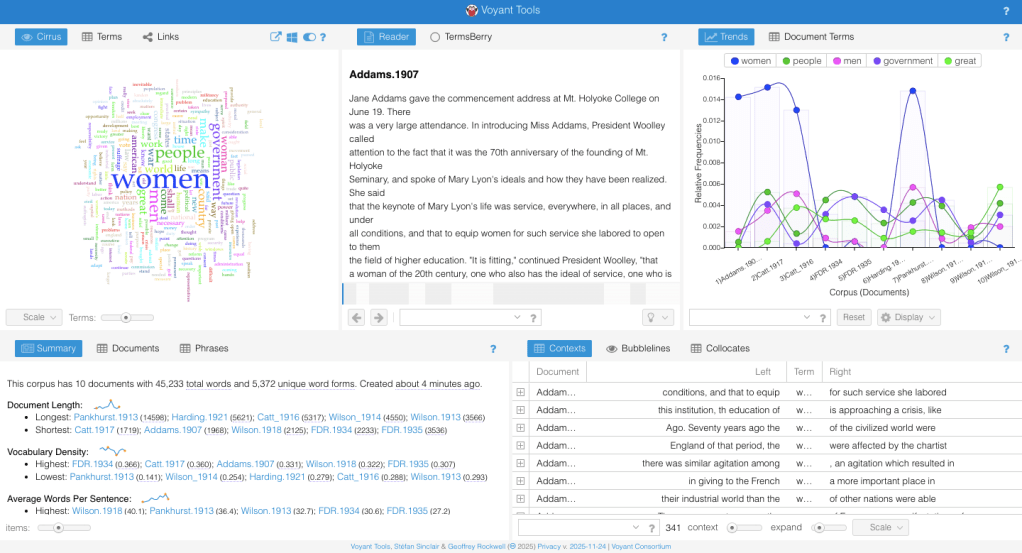
    The first thing my eye is drawn to, and likely where Voyant wants us to start, is in this summary section on the bottom left, highlighted in a blue box, with the first sentence underneath reading “This Corpus has 10 documents with 45,233 total words…”

  • 2.1 Summary Tool!

    The summary section on Voyant is a useful tool that will display all of your corpus and files. It divides itself into six starting sections within the summary to show you an overarching, large-scale analysis of your data.

    The first section within the summary you’ll see is a statement regarding what your data is made up of. It will say how many documents are in your corpus, the length of those documents, first in total number of words, and second in total number of unique word forms. Finally, it will also give you a timestamp of when the corpus was created within Voyant. Once you’ve read the opening statement, you can dig into the data that the summary tool is giving you. 

    First, within the tool, is the document length tab. It lists the longest document in a rank list with the number of words associated with the data alongside the title, and follows with a ranking of the shortest documents with the words associated with the data alongside the title as well. So it will begin with the document length, then it moves to vocabulary density. Vocabulary density is listed similarly, ranked from highest density to lowest density.

  • 2.2 Distinctive Word Tool!

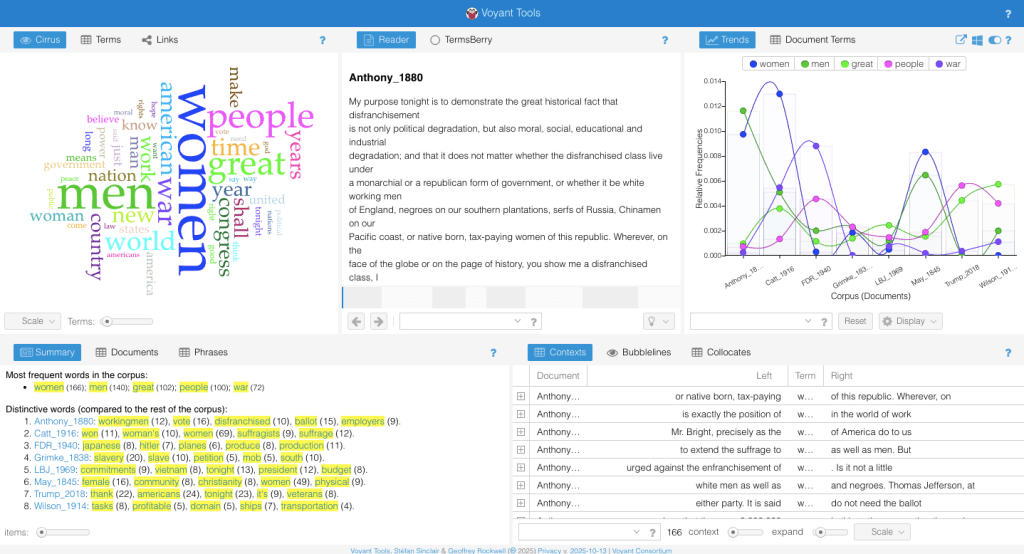
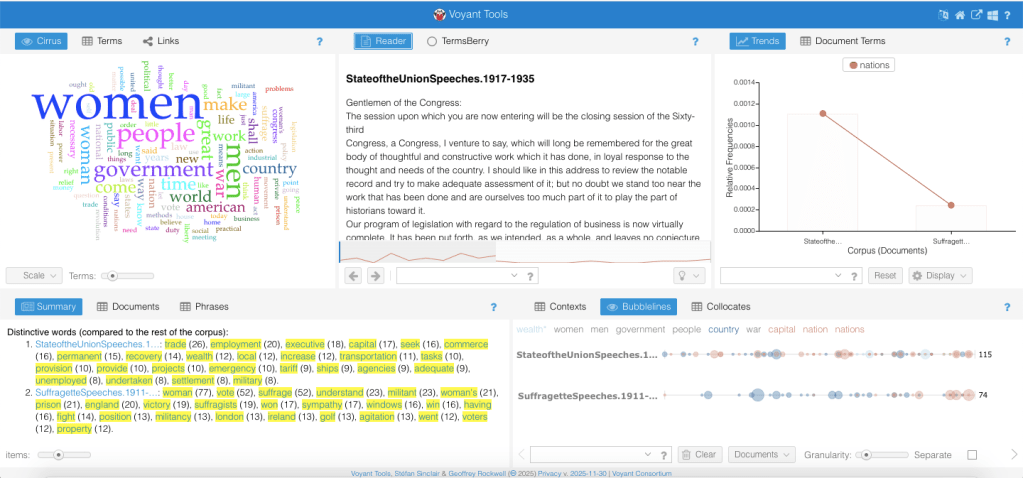
    The next place I want us to bring our attention to within the “Summary” tool is the Distinctive Word list it generates if you scroll down, as I have in the image below.

    Here is the distinctive word tool, in the bottom left! This is, more specifically, before I expanded the number of visible terms. This tool is really helpful for comparing themes and points of interest within the text. We will dig more into this tool and how to make meaning of it later in this tutorial.

  • 2.3 Trends Tool!

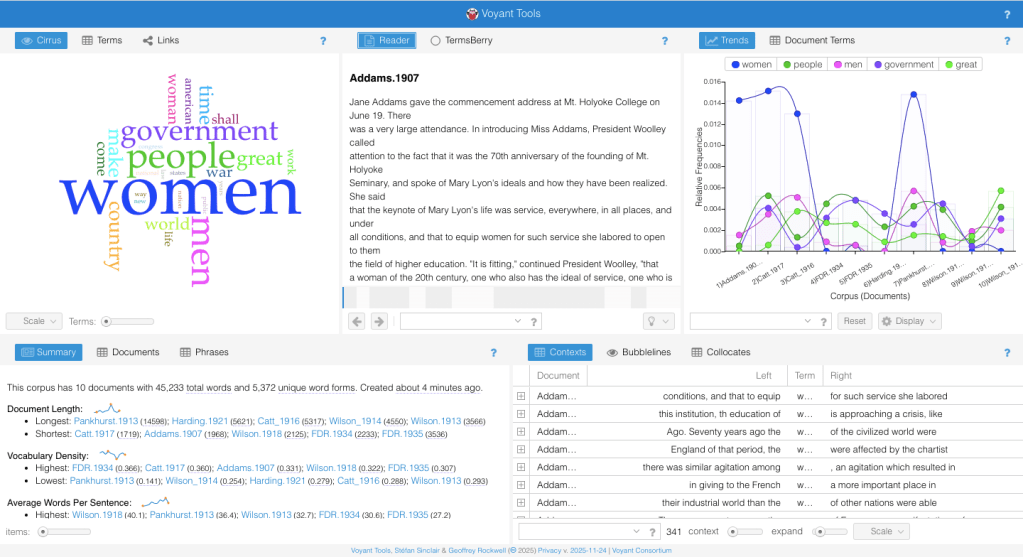
    Here is the trends tool, which is the second section I started to play with. Here, you can see a few things I did wrong. First, the inconsistent naming of my documents makes it difficult to know, for people other than me, which documents are which! Even for me, after a while of doing this work, I am pretty confident I would get the names mixed up. Once I got to this point, I started to realize I needed to organize my data better.

    It’s Okay To Start Again!

    The trends tool cannot be used here to its fullest potential because of the way I separated each speech into its own text. This means it is analyzing individual speeches, instead of sections of the corpus (or the ENTIRE data) that I wanted to see. I realized what I was really interested in was the differences between the State of the Union Speeches and the Suffragettes holistically, not individually. This meant the better organization of my data, and I found two large documents, making my corpus only two-pronged, not ten. I used the same speeches and pasted them into my text editor (on a Mac, or the notebook application on Windows) in chronological order. This allowed me to see the change over time as well, and have one significant document with all of the same “type” of speech I am identifying. Once I had both corpora ready and pasted into two documents, I multiselected those documents within the “Upload” section of Voyant to enter my results. 

    I had to fix the way that I entered my data- but that’s okay! It’s normal for digital projects to hit hiccups, and with careful data practices, you can decrease the number of times you’ll run into issues like mine. That’s why you started with “Corpus preparation” as your first step. With what we’ve learned together, let’s see how my new organization of data came out below!

  • 3.0 Step Three- Data Decisions

    Data isn’t neutral, and neither are your choices when creating digital projects and text analysis!  

    As you saw me demonstrate in my last post, missteps happen.

    That’s why we learn as much as we can, and often that’s an active process! It’s important to understand what is happening when we enter our data into Voyant, and what choices we make when engaging with digital tools.

    The work Voyant produces is actually a series of choices that condition Voyant’s possibility. The choices you make with your data matter, and shifting how you enter them is one way you can control your corpora’s analysis. Another way is with stop words. Making choices in your data is not permanent, necessarily; oftentimes, you can change how you enter your data and how Voyant interacts with that data. See below for tips and tricks!

  • 3.1 New Choices!

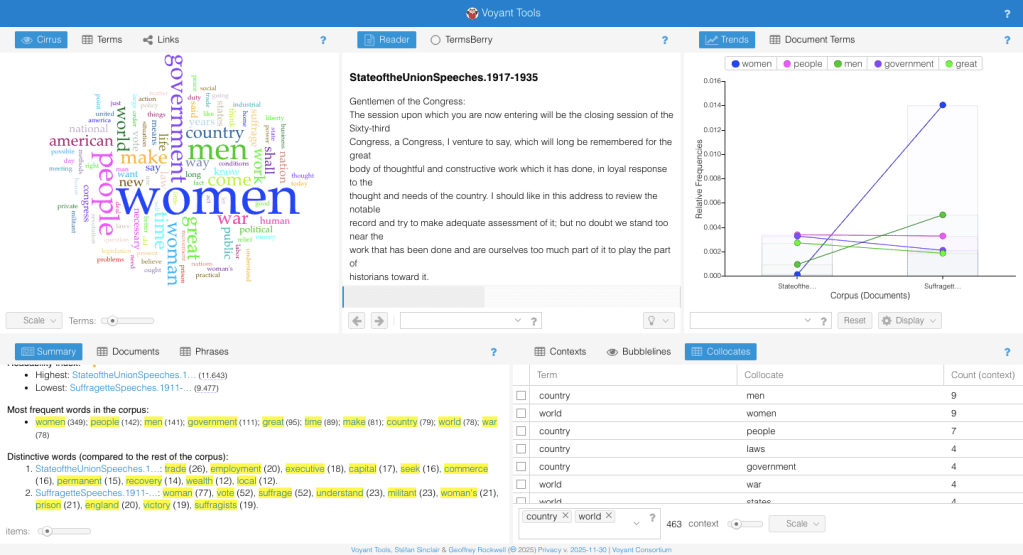
    Here’s what my data looks like as two distinct corpora, with the entire corpus analysis then being a comparative study.

    This works for my research, but if someone were comparing, say, works of Shakespeare, a student could enter separate documents for Shakespeare’s plays and get really meaningful results, rather than group them together as I did. Experiment on your own, and don’t be afraid to change your approach and make new choices!

  • 3.2 Distinctive Words Tool, the Remix!

    You can use the “Terms” sliding scale to adjust the number of items to include more, like I saw I should here. I often recommend adjusting the terms to be more than ten; I decided to shift it to 25 terms for our purposes below.

  • 3.3 Cirrus Word Cloud

    One of the most eye-catching parts of Voyant for me, and dominant in the left-hand upper corner of your screen, is the “Cirrus Word Cloud Tool”. You can see the expanded terms list both at the bottom of the Voyant in the “distinctive words list” and in the Cirrus word cloud. The word cloud is a great tool I like to use to get a general idea about the kinds of topics my corpus is bringing up, as well as visualizing these main themes in a pretty direct and digestible way. Here’s more detail on the tool itself below!

    Cirrus tool- this tool shows you a word cloud of common terms across your corpus. Depending on your research interests, you can use the bar at the bottom of your screen to enlarge the number of terms in the cloud or shrink the number of terms. I recommend setting this number past the minimum it gives you by default, to have a more inclusive view of your research topic.