Category: Uncategorized

  • 4.0 Step Four: Experiment Until You Like it!

    Analysis of Results, Part One:

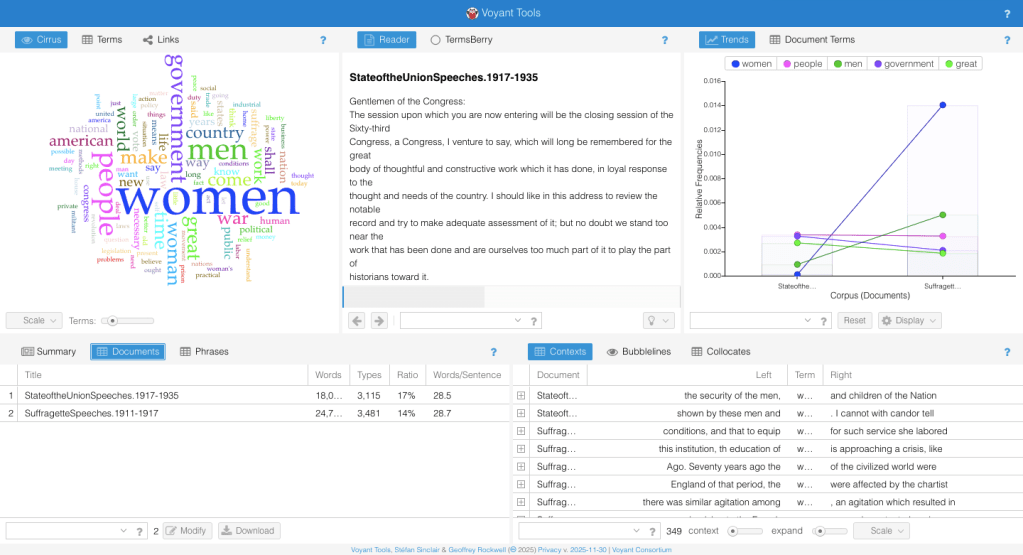
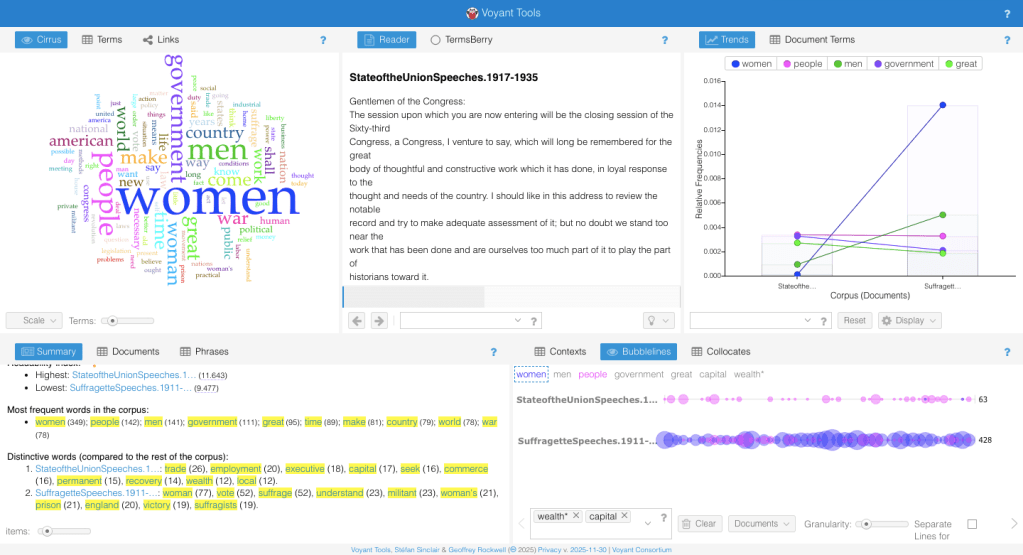
    Now, in my research, I want to study gender. So I might take this corpus and put it into Voyant differently. To use this Cirrus tool for gender, I am going to paste my two documents into Voyant separately, in two windows. In a larger word cloud, I am going to use the term tool to expand the terms to let’s say, 300 terms, making my new word cloud much richer.

    Now I could compare clouds of women’s words to men’s. What are women vs men speaking about? Then, I’ll go back to my original Voyant, with both documents included in my corpus.

    Comparatively, what gets obscured when the conversation blends both the Suffragette’s speeches and the President’s? I break this process down into three steps below, which I include pictures for! I also used the “terms” adjusting tool, which allows you to adjust the size of the tools on the screen to make the word cloud larger. Do this on your own with a tool you are working with by hovering over the edge of the tool until it highlights a two-pronged arrow as your cursor. You have now selected the tools boundary! Click and drag your cursor to adjust the size you’d prefer.

    In the screenshot below, I am entering only the suffragette speeches into Voyant. Then, I am expanding the number of terms included to 300, and the distinctive word list, which I am also paying attention to in this context, to 25 terms at the very bottom.
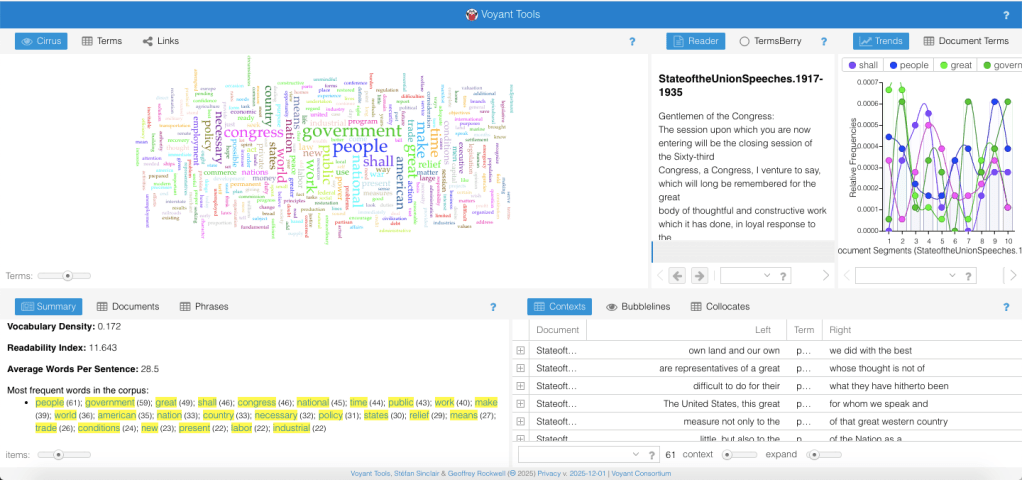
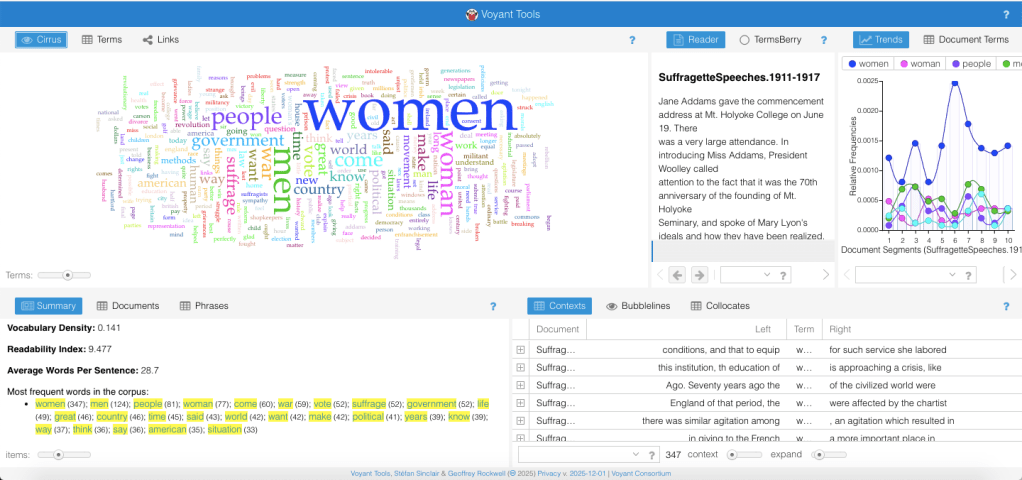
    This second image, as you can see, shows the Suffragettes’ word cloud and distinctive words as opposed to the previous image, which shows only the State of the Union speeches. Here, you can see below how you can engage with the cloud by hovering over a word to see its frequency in the text.

  • 4.1 Experiment Until you Like it, Takeaways!

    Analysis, Part Two:

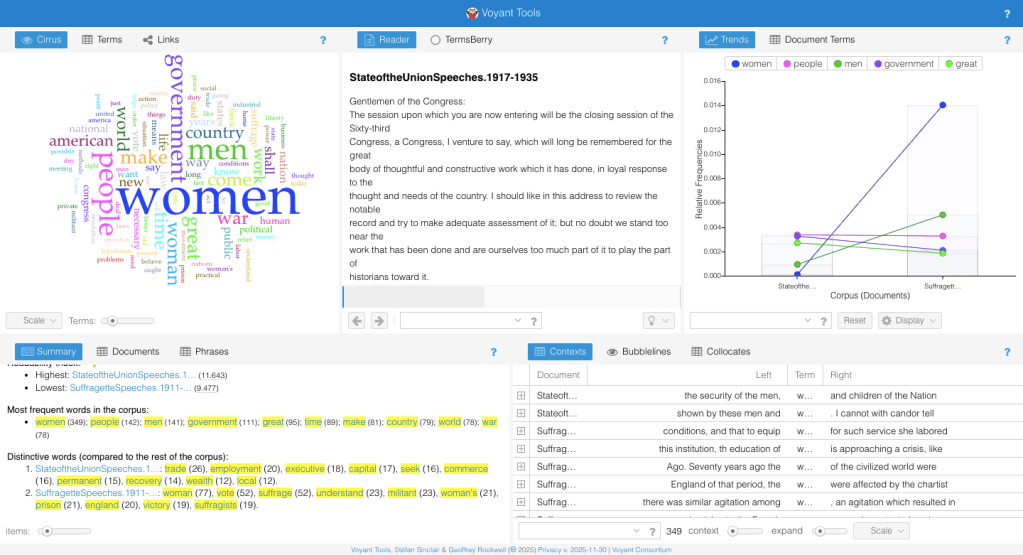
    When looking at this data, there are a few more obvious takeaways I wouldn’t have seen in the total picture. First, I can tell women are speaking more frequently about topics such as people-centric words, the idea of the use of government, and the adjectives that would come along with it, such as “fair” and “great”. You also see terms like house, shoekeeper, consent, and history. I found these words’ frequency and visualization fascinating, as they were not in the “distinctive word list,” but using the Word Cloud tool, they began to piece together a narrative that the suffragettes were espousing. Making their points personal and realistic, they grounded their speeches in spaces by speaking about topics such as the family, the home, and education. They strived for their goals of equality by bringing these essential themes closely associated with women, and with the admirable and respectable values of our ideal nation. The distinctive word list I copied below is for ease of comparison.

    Most frequent words in the corpus:

    On the other hand, you can see that in the word cloud by the Presidents, those conversations are appealing to a different audience and touching on different themes. In this cloud, fiscally related words and connections to governance were dominant and visible. “Employment”, “Power”, “Wealth”, “Necessary”, and “Law” were all terms that stood out to me and seemed to be more indicative of these speeches’ key themes. Despite the speeches being collected from 1917 to 1935, women and the plight of suffrage do not become visible within this tool. Now, looking comparatively, the tool, when used on the main page of my Voyant, the one which is the combined full corpus with both Suffragettes’ and Presidents’ speeches, the conversation changes. This is evident first perhaps in the distinct words section, which now represents the women’s words as follows:

    1. SuffragetteSpeeches.1911-…: woman (77), vote (52), suffrage (52), understand (23), militant (23), woman’s (21), prison (21), england (20), victory (19), suffragists (19), won (17), sympathy (17), windows (16), win (16), having (16), fight (14), position (13), militancy (13), london (13), ireland (13), golf (13), agitation (13), went (12), voters (12), property (12).

    The sudden appearance of geopolitical tensions and global topics makes itself more apparent in this hybrid view of the full corpus, drawing out these women’s conversations on “militancy”, “fighting”, “agitation”, and interestingly, “prison”. The presentation of their plight now appears confrontational, aggressive, pointedly violent even. This mirrors how suffragettes were treated by the patriarchy when trying to express their needs, with their words being brought through a lens of violence and power. Comparing this hybrid or blended conversation, we see a pattern that highlights the gendered nature of the context of suffrage and the struggle for truthful visibility by these activists.

  • 4.2 Terms Berry Tool!

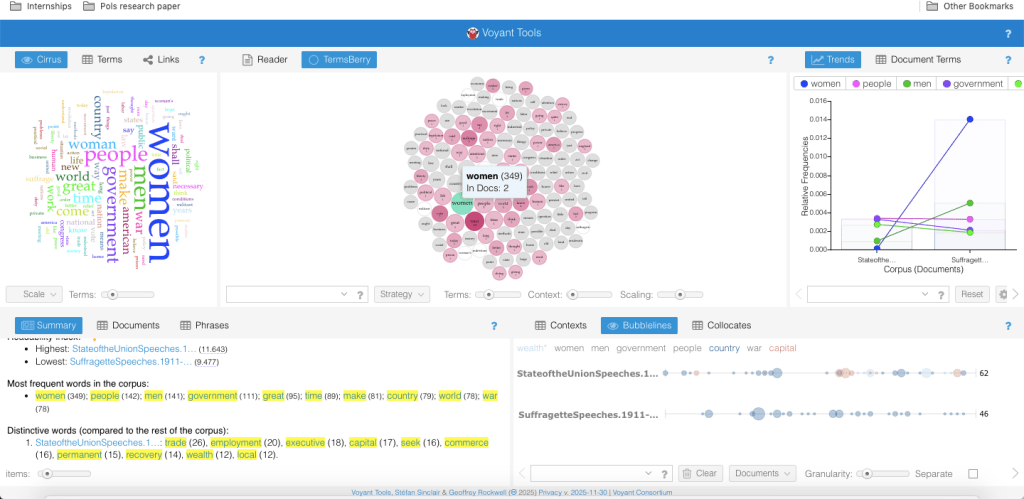
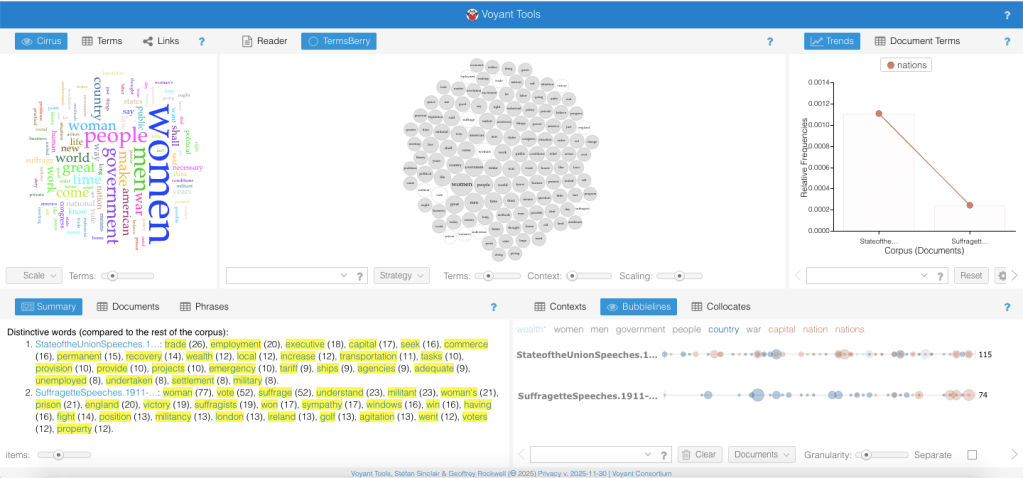
    If I could point you, though, to another tool SIMILAR to the word cloud, but so much cooler and more expansive, I’d suggest you take a peek at “TermsBerry”. This tool is taking the same concept that the word cloud embraces, presenting a visualization of the main word coming up in the corpus, but it does it more reflexively. When you hover over a word, as you can see below, the word highlights OTHER words in the corpus it is related to. This allows you to track connections across the text, as well as visualize the main themes or topics of conversation. It is adding collocates data, or words that appear together in the text. This tool essentially visualizes high-frequency terms, like the word cloud, but adds the utility of engaging with how those same terms co-occur (which Voyant describes as to what extent they appear in proximity with one another). Voyant, by default, sets this pairing data; it will show you in highlighting other related words as appearing either two words to the left or two words to the right within the corpus. If you don’t feel like this is inclusive enough, which it might not be depending on your text, you can use the “Context” sliding bar at the bottom of the tool to increase the number of spaces accepted between terms that are still connected as collacates.

    The default is top terms; I usually shift to distinct terms because I find those more interesting to my research, but look at both and see which results you’d rather engage with. On the bottom of the tool, under “Strategy”, you can shift this to “Distinct Words”. Next to that, you’ll see a sliding bar for the number of terms, which I would say you should scale up regardless of your project, as you have seen me do. The last sliding bar adjusts the scale from which the tool is considering to pull related words from the corpora, which, for my research, I ended up leaving alone. The first image below is a picture of the tool, and the second image shows where you can adjust the scale and other sliding bars at the bottom of the tool, zoomed in for you.

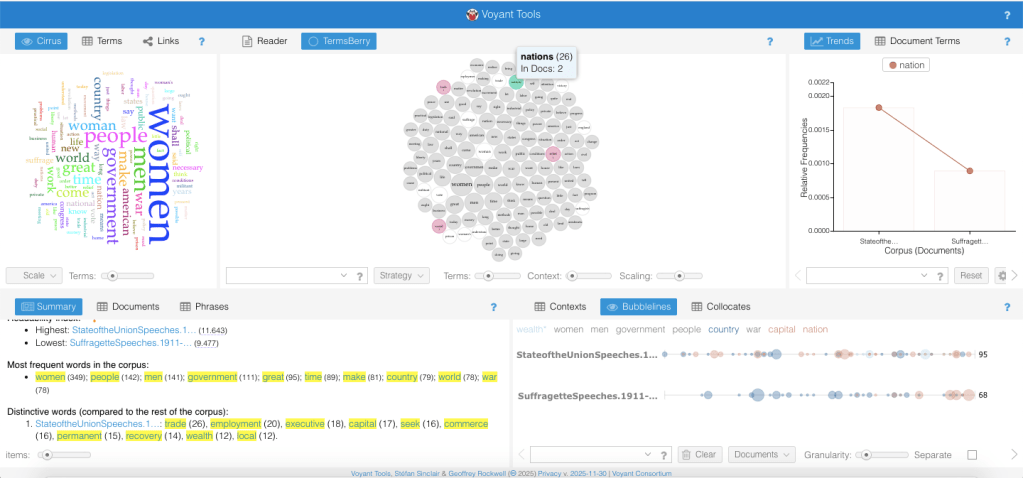
    Here is the terms berry in action, so when you hover over a specific term, here is how it highlights collacate data. You can see here the difference between a word highly related in the corpus, such as “Women”, compared to a word less connected to the full corpus, such as “nation”.

  • 4.3 Collacates Tool

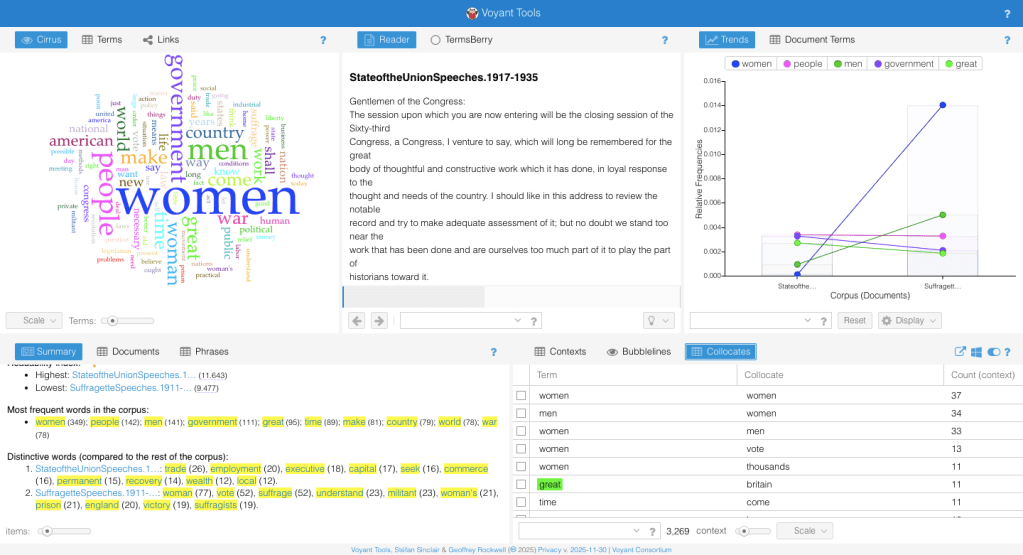
    A related tool to the previous is the Collacate tool, as seen above. It can be found on the bottom right-hand of your screen, on the third page of tools.

    As a reminder, collacate data are the words found in proximity to each keyword in your corpus. This tool has the collacate data listed along with the term listed on the left, and on the right, you’ll see something called “Count (context)”. This basically is just sharing the frequency of the term occurring in proximity to the keyword. This shows you words that are related within the corpus.

  • 4.4 Trends Tool, the Remix!

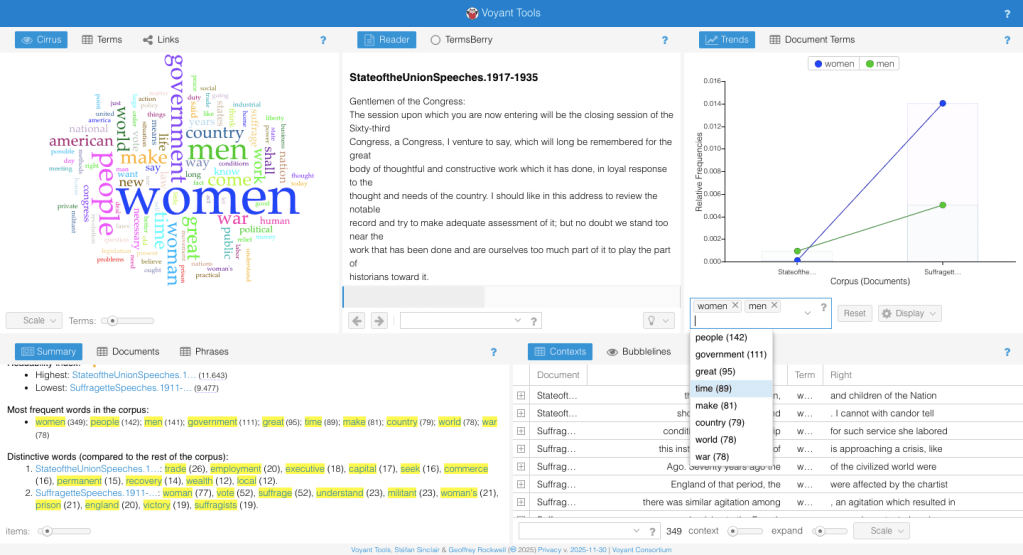
    Above is the trends tool in action; here’s the drop-down that will come down to allow you to search!

    Trend tool: This tool allows you to create a graph that shows the evolution of a word’s frequency. You can adjust the type of graph. Your choices include a stacked bar, a line plot, an area plot, and a variety of other visualization options within the “display” section of trends.

    For my project, using multiple documents, one could look at the multiple words trend throughout the documents using the word trend tool in the top right to track the evolution of different terms used over a document’s full text.

  • 4.5 Documents tool!

    Documents- This tool is pretty straightforward, but I wanted to show you how it has the length of your docs, words, word types, and some other statistical data you might find useful.

  • 4.6 Contexts Tool!

    Context tool: bottom right-hand side, this feature can show a concordance (or surrounding text). It can also calculate the correlation and significance of the correlation of text and strings of text in your data corpus. 

    I use this context tool for gender specifically…. NOTES STILL: Collocate clusters the links tool, double click to expand, get rid of terms that are cluttering the analysis, control click on a term to remove it. This tool is useful for exploring the interrelationship between key concepts with multiple texts, and when there are few lines that suggests the texts are too different, a lack of connection then too would be interesting depending on your sources!

  • 4.7 Bubblelines Tool!

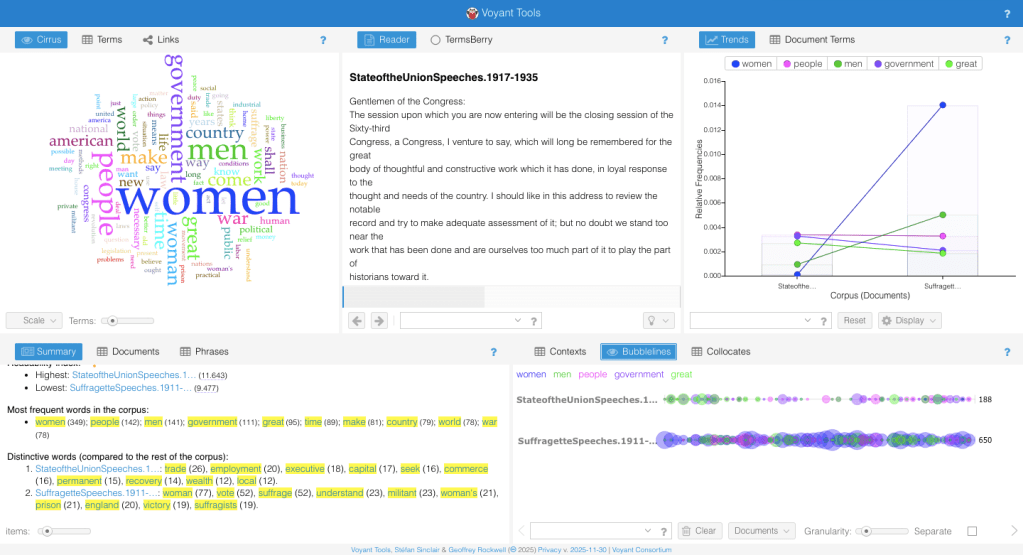
    Bubblelines: Bubble lines are the most useful of the visualizations of the word trends for looking at multiple sources. Can clear terms, add new terms, and see what terms are being used. Use the granularity tool at the top to adjust the number of terms.

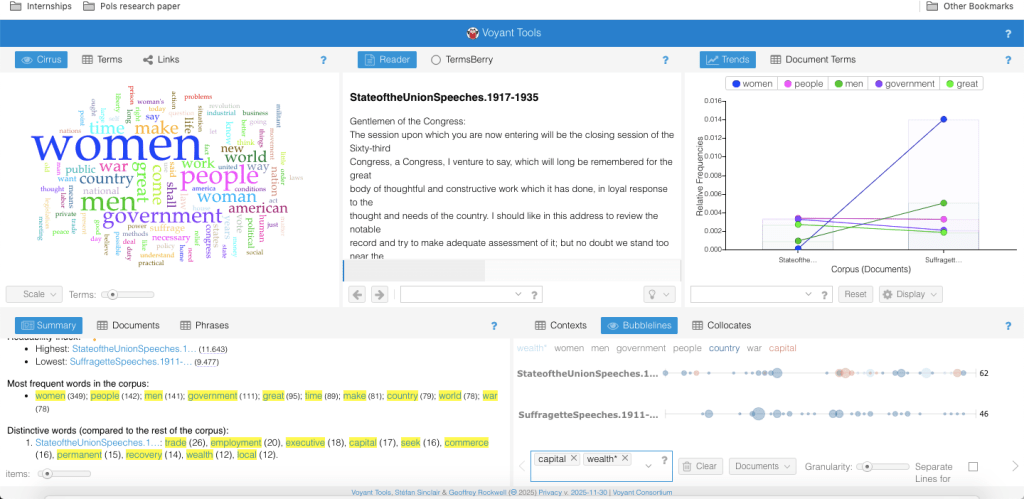
    Bubbline here highlights “wealth” and “capital”, of interest though it seemed primarily to State of the Union Speeches as seen on the left in the distinctive words section, on the right you see it actually in bubblelines is also being mentioned by suffragettes.

    Here’s how women are discussed using the bubble line tool, indicating the intensity of the words used, which is helpful for visualizing just how much a source is discussing something. The term “Women” has consistently been a significant one for the suffragettes, clearly, but this visualization allows you to see it throughout the document. In addition, since I pasted the speeches into the document in chronological order, this tool is also seeing a trend over time. Try using this bubblelines tool with different keywords in the text- how does this visualization shed light on how the Presidents were speaking about “nation”? About “militancy” or “aggression”? What about “peace”?

  • 5.0 Step Five: Using your Analysis!

    Now that you have your results, you can do anything with them! I took this information, considered the conversations that I saw being had at work, and dug into more historical work that aligned with my interests. You could use your own analysis in a bunch of meaningful ways!

    Visit the “What Now?” page to see how other researchers use text analysis and some examples of digital projects that highlight tools like Voyant.

    Or, visit the “Resource” page to find help on the next steps for your own project goals. There, you’ll find some of the resources I used, which guided me to Voyant and gave me more digital confidence. Find out more about how you can continue in this field and better your own project there. If you are curious about my process or how I got here, feel free to visit the “About Me” tab, where I take you through my experience learning about digital projects.